
Photo tips
Choosing parent photos for an AI baby generator
You do not need a professional photoshoot to start. A straightforward portrait with an unobstructed face is a useful starting point. These tips help you choose two photos and avoid common framing problems before you spend credits on a creation.
By AI Family Maker · Updated
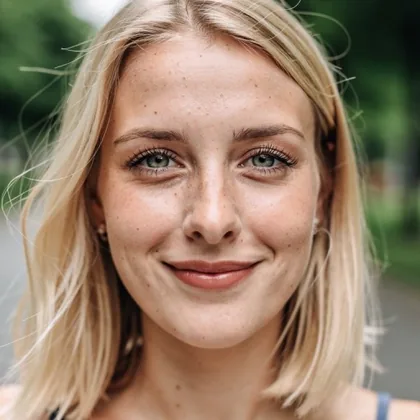
Look for soft, even light
Choose a photo where you can see the whole face clearly. Daylight near a window can work well. If one side of the face disappears into shadow, or a strong light washes out the features, try another picture.
A natural photo is more useful than one with a heavy beauty filter, stickers or an effect covering the face. You do not need to edit away every background detail; focus on keeping the face easy to see.
Leave room around the face
Use a head-and-shoulders portrait rather than a crop that cuts through the forehead or chin. Some space around the head gives the app room to frame the photo. A very close selfie can also change how features look compared with a picture taken from a little farther away.
Facing the camera is a simpler starting point than a strong side profile. Glasses with clear lenses may leave the eyes visible, but sunglasses, masks and hands across the face can hide details. Choose an alternative when you have one.
- Keep the eyes, nose, mouth and chin visible.
- Use one person per photo.
- Avoid pictures taken from far above or below the face.
The two photos do not need to match
The parents can be photographed in different places, at different times and against different backgrounds. Each slot takes its own photo. Prioritize a clear face in both pictures over matching clothes or scenery.
If you only have a group photo, a separate portrait is worth trying first. AI Family Maker checks for faces in the browser and uses the largest face when several are found. A single-person picture avoids an unintended selection.
When the app cannot find a face
A No face found message is a prompt to check the picture. Try a brighter photo, a less tightly cropped version or a straight-on portrait. You can choose another photo or continue with Use anyway, but the latter does not repair an unclear source image.
If a file cannot be opened, try exporting it as a JPEG, PNG or WebP. Some phone photo formats are not supported in every browser. Review the preview after selection so you know which picture will be used.
Check both previews before creating
Make sure each slot contains the intended person and that neither photo is blurry or cut off. Replace a photo before starting if you want to try a different expression or angle. The Try a sample option is also available for exploring with fictional AI-made faces.
Use photos you have the right to upload. See the Privacy Policy for how uploads and finished images are handled. These portraits are made for fun; selecting a clearer photo does not make the result a forecast of a real child.
Ready to try a portrait?
Add two photos, explore a theme and review the credit cost before creating.
Create a photo