
Getting started
How to make an AI baby photo from two parent photos
An AI baby photo is a playful way to imagine a little one together. You supply two parent photos, choose a look and create a new portrait. Here is how to get started in AI Family Maker, from the first upload to a finished photo you can keep.
By AI Family Maker · Updated
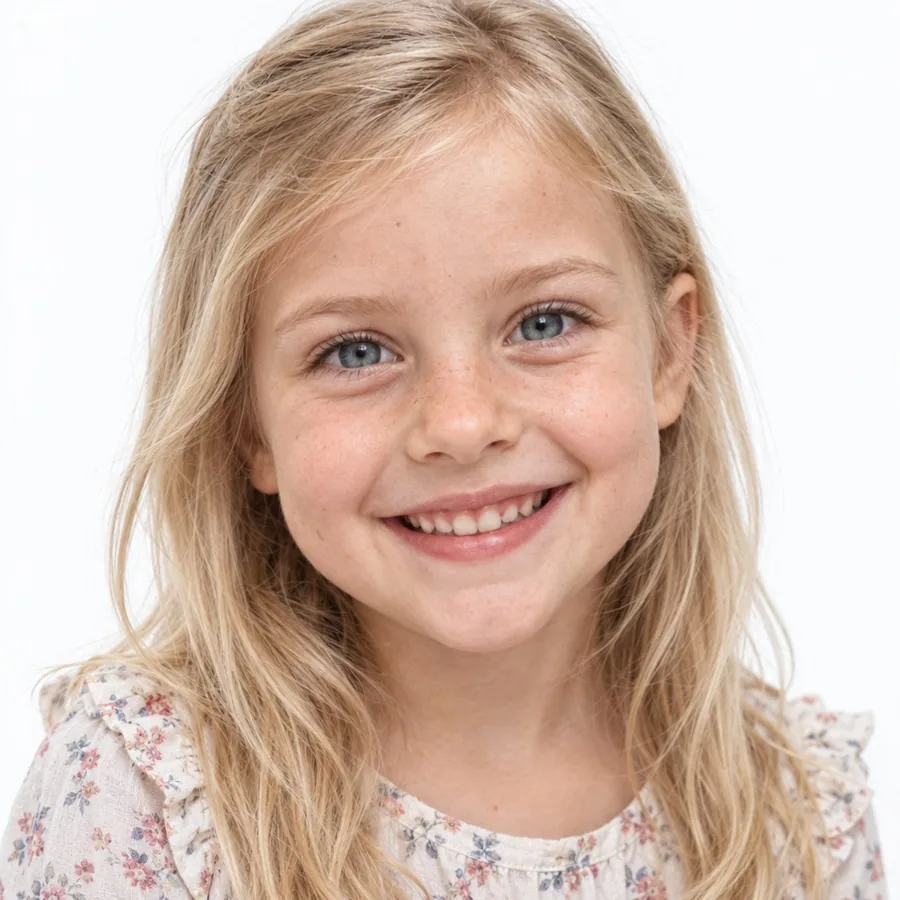
1. Choose one clear photo of each parent
Open Create and add a photo to the Mom and Dad slots. Each picture should show one person facing the camera, with their full face visible. The photos can be taken separately; matching backgrounds are not needed.
Not ready to use your own photos? Choose Try a sample under either slot. The sample faces are fictional people made with AI. They let you explore the same photo selection process before uploading your own pictures.
- Use bright, even light and a relaxed expression.
- Include some space around the head and shoulders.
- Avoid sunglasses, group photos and strong face filters.
2. Check the selected faces
The web app checks each photo for a face and prepares the framing in your browser. Review both previews before moving on. If you picked the wrong photo or the crop is not what you wanted, use Replace or remove it and choose another.
If no face is found, the app offers another photo or Use anyway. A clear replacement is usually the more useful starting point. If there are several faces in a photo, the app uses the largest, so a single-person photo gives you more control.
3. Pick the portrait you want to imagine
Choose Girl, Boy or Surprise me, then explore the theme picker. These are creative choices for the generated picture. Photo studio gives you a simple portrait, while themed looks can add a setting, outfits or an imaginative scene.
Use the composition filters to browse photos of just the child, a child with Mom or Dad, or the whole family. Check the theme preview: it shows the kind of scene and composition you are choosing.
4. Choose quality and create
Choose Standard, HD or 4K, then review the credit cost shown next to the create button. Sign in when prompted so your finished photos can be kept in your account. The web version uses paid credits and does not offer a free trial.
Start with Standard if you are exploring a few looks. Once you know the composition you like, you can choose a higher-quality setting for another creation. Generation time can vary, so keep the waiting screen open until the result is ready.
Ready to try a portrait?
Add two photos, explore a theme and review the credit cost before creating.
Create a photo